반응형

Night mode 의 각 모드에 대한 설명과 각 모드가 어떻게 동작하는지 예제를 만들어보았습니다.


먼저 Night mode는 아래와 같은 모드를 가지고 있습니다.

모드명 설명 참고
MODE_NIGHT_UNSPECIFIED 야간 모드에 대해 지정되지 않은 모드입니다. 기본 야간 모드를 사용하기 위해 이것은 주로 setLocalNightMode ()와 함께 사용되어 기본 야간 모드를 사용할 수 있도록합니다.

기본 모드와 로컬 야간 모드가 모두 이 값으로 설정된 경우에는MODE_NIGHT_FOLLOW_SYSTEM의 기본값이 적용됩니다.
MODE_NIGHT_FOLLOW_SYSTEM 시스템의 설정에 따라서 동작  
MODE_NIGHT_AUTO_TIME 시간(일출/일몰)에 따른 동작 Deprecated 됨
MODE_NIGHT_NO 동작안하도록 함  
MODE_NIGHT_YES 동작하도록 함  
MODE_NIGHT_AUTO_BATTERY 절전모드시 동작하도록 함  

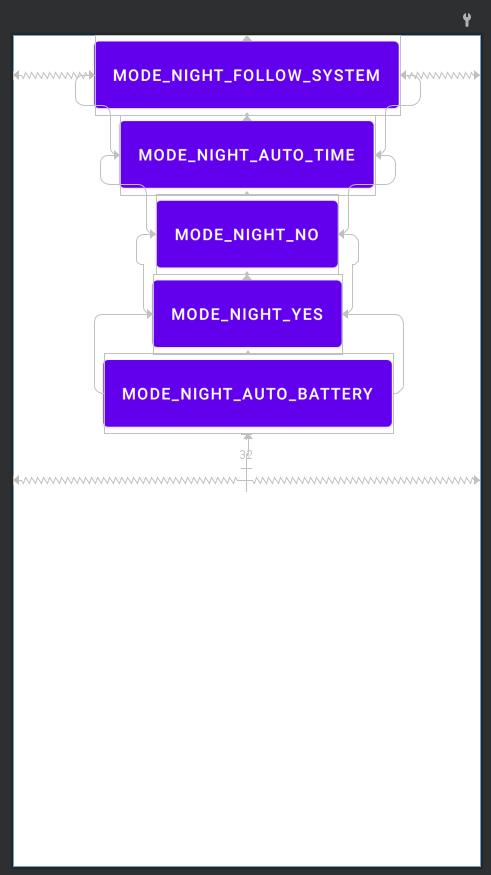
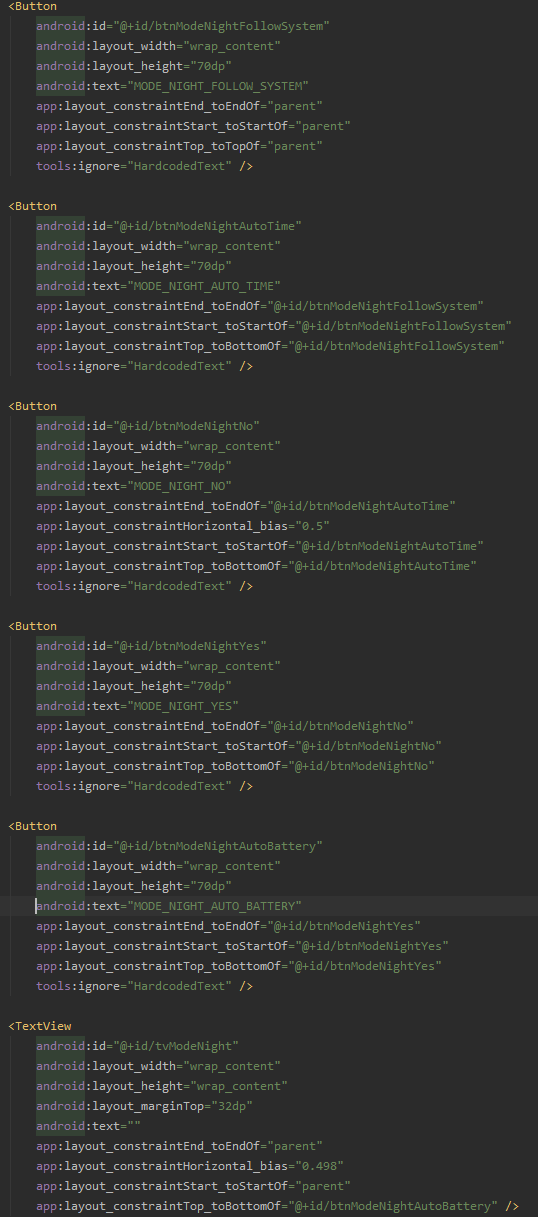
실제 Night mode 동작 확인을 위해 각 모드별 버튼을 만들어서 버튼을 클릭한 이후 어떻게 동작하는지 확인합니다.

class MainActivity() : AppCompatActivity(){
    override fun onCreate(savedInstanceState: Bundle?) {
        val modeNightText = mapOf(-100 to "MODE_NIGHT_UNSPECIFIED", -1 to "MODE_NIGHT_FOLLOW_SYSTEM",
                0 to "MODE_NIGHT_AUTO_TIME", 1 to "MODE_NIGHT_NO",
                2 to "MODE_NIGHT_YES", 3 to "MODE_NIGHT_AUTO_BATTERY")

        super.onCreate(savedInstanceState)
        setContentView(R.layout.activity_main)

        val textModeNight : TextView = findViewById(R.id.tvModeNight)

        findViewById<View>(R.id.btnModeNightFollowSystem).setOnClickListener {
            AppCompatDelegate.setDefaultNightMode(AppCompatDelegate.MODE_NIGHT_FOLLOW_SYSTEM)
            textModeNight.text = modeNightText[AppCompatDelegate.getDefaultNightMode()]
        }
        findViewById<View>(R.id.btnModeNightAutoTime).setOnClickListener {
            AppCompatDelegate.setDefaultNightMode(AppCompatDelegate.MODE_NIGHT_AUTO_TIME)
            textModeNight.text = modeNightText[AppCompatDelegate.getDefaultNightMode()]
        }
        findViewById<View>(R.id.btnModeNightNo).setOnClickListener{
            AppCompatDelegate.setDefaultNightMode(AppCompatDelegate.MODE_NIGHT_NO)
            textModeNight.text = modeNightText[AppCompatDelegate.getDefaultNightMode()]
        }
        findViewById<View>(R.id.btnModeNightYes).setOnClickListener {
            AppCompatDelegate.setDefaultNightMode(AppCompatDelegate.MODE_NIGHT_YES)
            textModeNight.text = modeNightText[AppCompatDelegate.getDefaultNightMode()]
        }
        findViewById<View>(R.id.btnModeNightAutoBattery).setOnClickListener {
            AppCompatDelegate.setDefaultNightMode(AppCompatDelegate.MODE_NIGHT_AUTO_BATTERY)
            textModeNight.text = modeNightText[AppCompatDelegate.getDefaultNightMode()]
        }

        textModeNight.text = modeNightText[AppCompatDelegate.getDefaultNightMode()]
    }
}


나이트 모드별 버튼을 가지고 있고, 마지막 버튼 아래에는 현재 동작중인 모드가 무엇인지 테스트 표시됩니다.
 

시간(주/야), 절전여부, 시스템 설정(Night mode 여부)에 따른 동작 결과

주간 / 절전 x / 시스템 설정 (Night mode x)


주간 / 절전 x / 시스템 설정 (Night mode o)


주간 / 절전 o / 시스템 설정 (Night mode x)  


주간 / 절전 o / 시스템 설정 (Night mode o)


야간 / 절전 x / 시스템 설정 (Night mode x)


야간 / 절전 x / 시스템 설정 (Night mode o)


야간 / 절전 o / 시스템 설정 (Night mode x)


야간 / 절전 o / 시스템 설정 (Night mode o)


반응형

제가 사용 중인 괜찮은 툴 소개해드립니다.


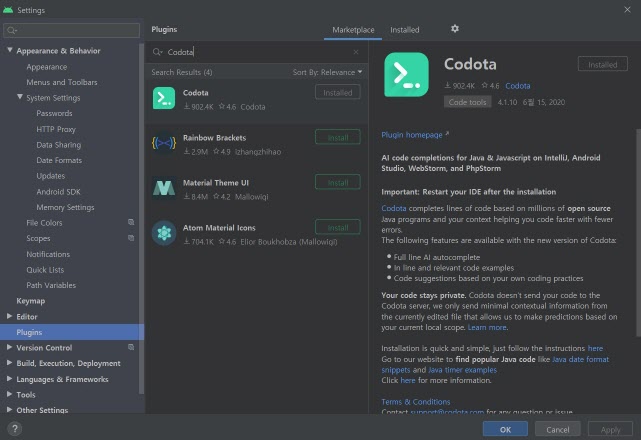
Codota (코도타)라는 툴인데 설치는 안드로이드 스튜디오의 플러그인(File-Settings-Plugins)에서 Codota를 검색하셔서 설치하면 됩니다.


플러그인 설치하는 방법을 모르시면 아래에 링크를 보시면 쉽게 하실 수 있습니다. 정말 간단합니다..

안드로이드 스튜디오에 설치방법

https://www.codota.com/get#android-studio


Codota - AI Code Completions for your IDE

Codota understands the world's code and provides you with the right suggestion at the right time

www.codota.com


Codota(코도타)?

Codota는 코딩 보조툴로 아래에 플러그인을 보면 AI Code completions이라고 간단히 기술되어 있습니다.


Android studio plugin: Codota

그런데, 코드 완성(Code completions) 기능은 안드로이드 스튜디오에서 자체 내장되어 있으며 메뉴(Code-Completion)에 세부 설정 변경도 가능합니다.


그러면, Codota는 안드로이드 스튜디오의 자동 완성 기능과 어떤 차별점을 가지고 있을까요?

AI 기반 (학습에 의한 코드 제시)

개발자가 코드 입력 시머신러닝 기반으로 제안된 Code completion의 작동합니다.

즉, 수백만 개의 소스 코드들에서 학습한 결과를 제시해서 보여줍니다.


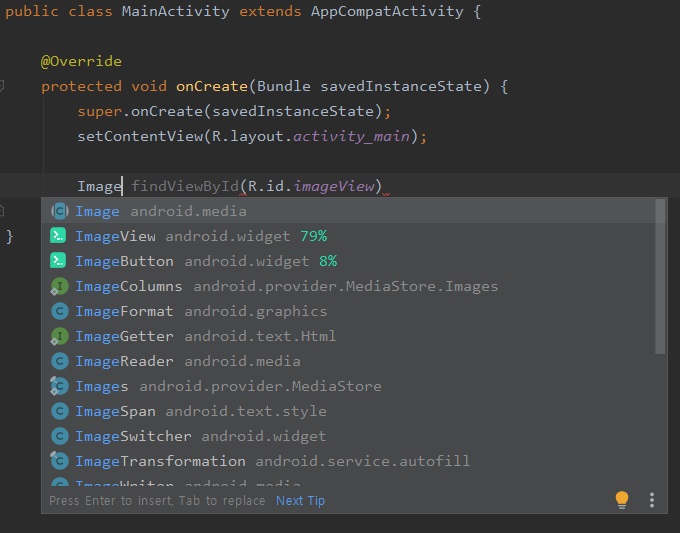
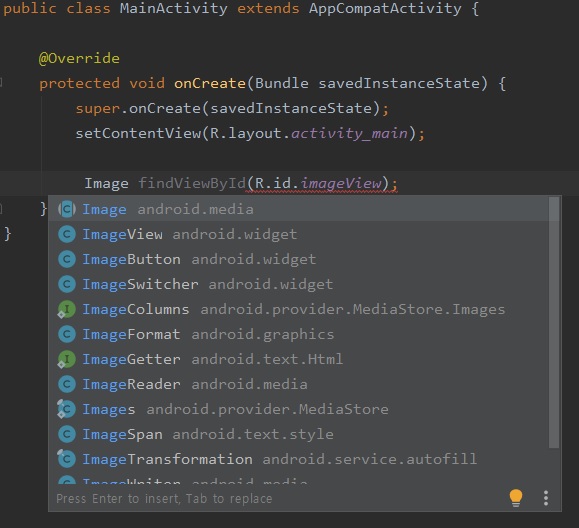
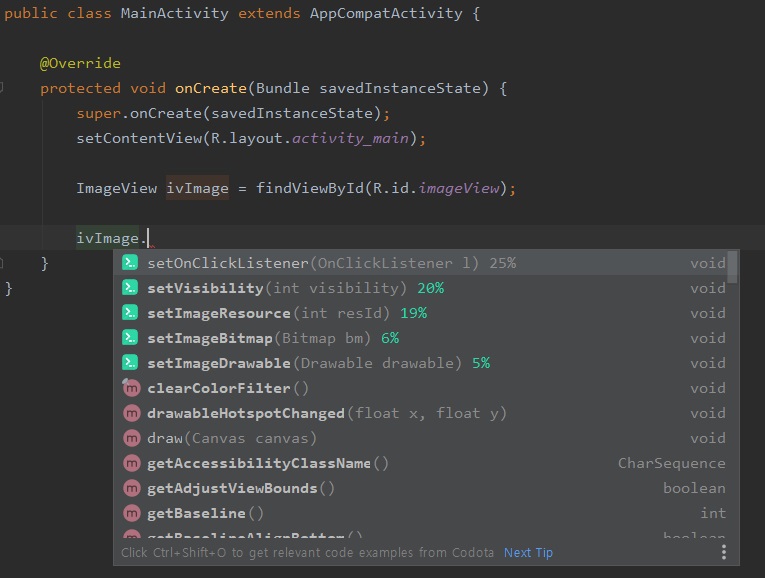
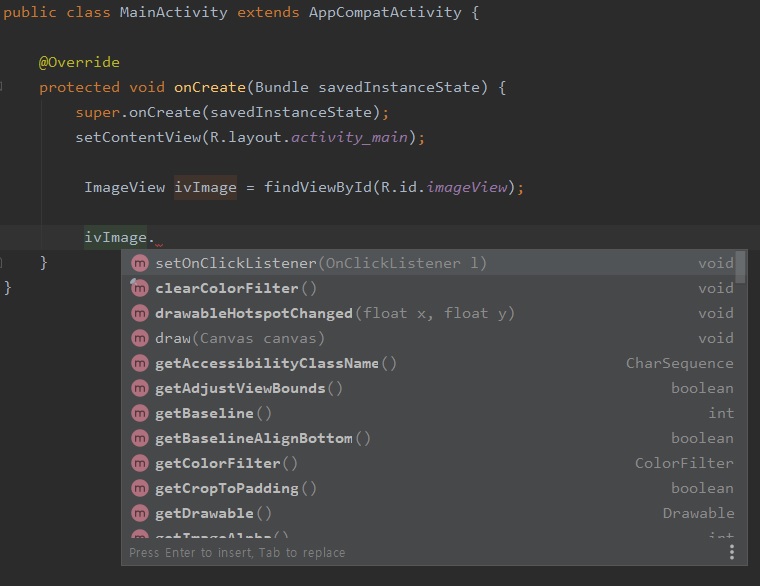
아래 중에 어떤 것이 코딩하는데 더 도움을 줄까요?

[왼쪽: Codota의 Code completion] - [오른쪽: Android studio의 Code complettion]

Codota의 Code completion이 시각적으로도 그렇고, 통계적으로 정렬해서 이후 사용 가능성이 있는 메서드를 추천해주고 있습니다.

[왼쪽: Codota의 Code completion] - [오른쪽: Android studio의 Code complettion]


스니펫 제공

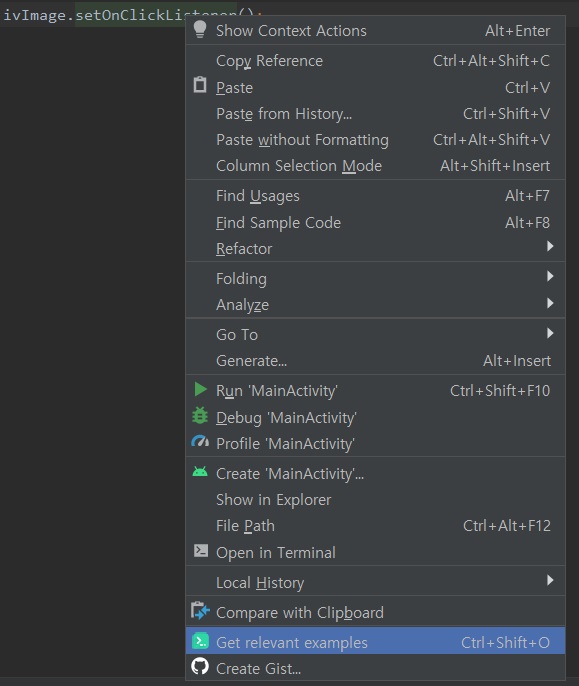
메서드를 사용한 예제(스니펫)가 필요할 경우에는 해당 메서드에 커서를 올려두고 우측 클릭 후 나오는 콘텍스트 메뉴에서 Get relevant examples 또는 단축키로 Ctrl+Shift+O 를 누르면 훌륭한 스니펫이 제공됩니다.

해당 메서드에서 우측 클릭후 나오는 콘텍스트 메뉴

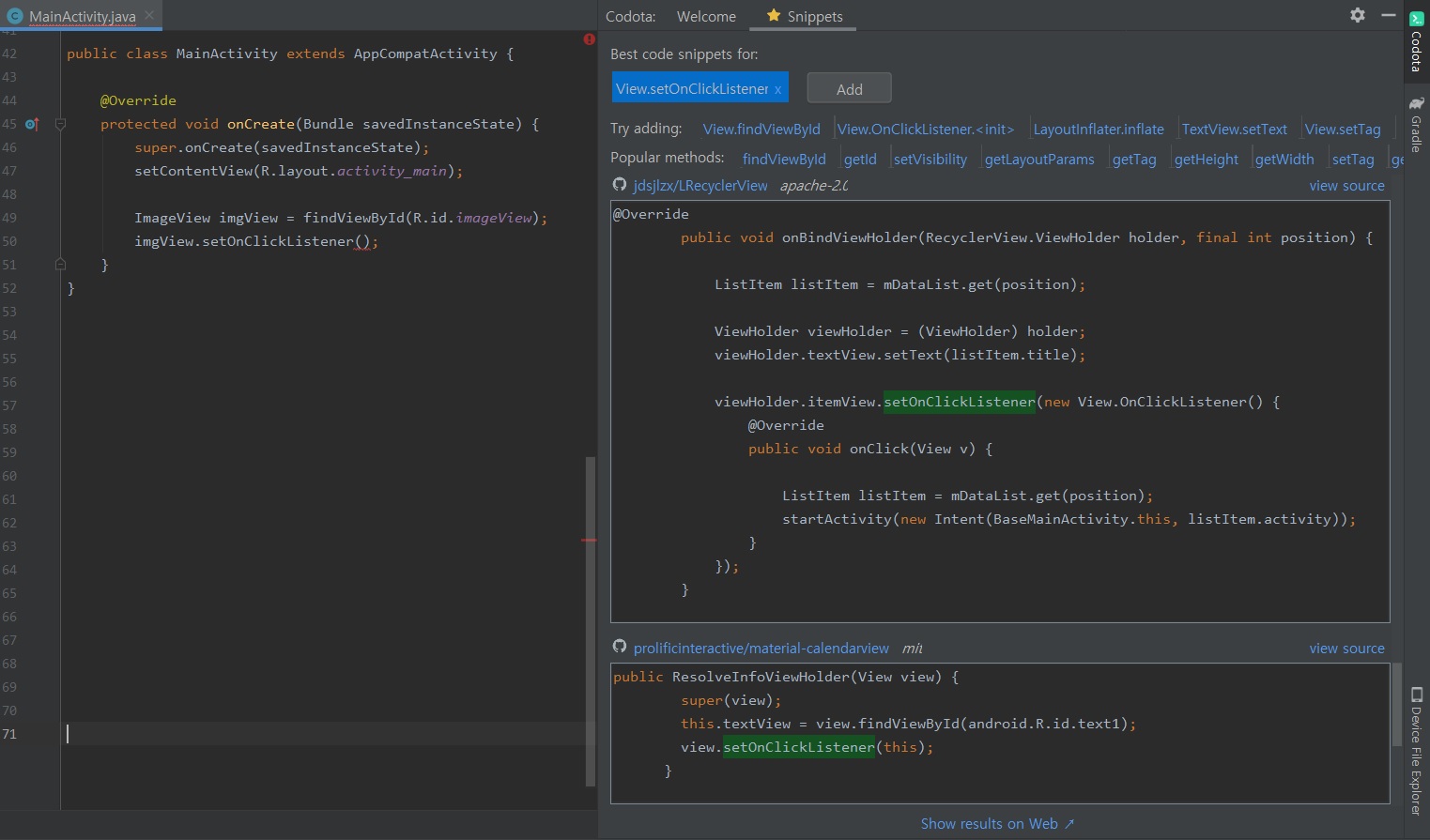
위의 setOnClickListener에 대해서 관련 스니펫을 요청한 경우에 아래의 오른쪽과 같이 제공됩니다. 

우측에 나타나는 해당 메서드의 스니펫들

저의 경우에 Ctrl 키를 두 번 클릭해서 스니펫들을 볼 수 있도록 설정해서 사용하고 있습니다.

(Codota의 설정(Welcome - settings)에 가면 옵션이 존재합니다) 


Codota의 대략적인 소개는 여기까지이며 개발하는데 도움이 되길 바랍니다.


반응형

[Snippet]
 "외부 전원 연결(끊김)" 감지하기

private final BroadcastReceiver mPowerConnectionReceiver = new BroadcastReceiver() {
@Override
public void onReceive(Context context, Intent intent) {
if (Intent.ACTION_POWER_CONNECTED.equals(intent.getAction())) {
//전원 연결시 처리
} else if (Intent.ACTION_POWER_DISCONNECTED.equals(intent.getAction())) {
//전원 끊김시 처리

}
};
protected void onResume() {

... 


IntentFilter filter = new IntentFilter();
filter.addAction(Intent.ACTION_POWER_CONNECTED);
filter.addAction(Intent.ACTION_POWER_DISCONNECTED);

registerReceiver(mPowerConnectionReceiver, filter);
}

protected void onPause() {

...


unregisterReceiver(mPowerConnectionReceiver);

}


 "헤드셋 연결(끊김)" 감지하기

private final BroadcastReceiver mHeadsetConnectionReceiver = new BroadcastReceiver() {
@Override
public void onReceive(Context context, Intent intent) {
if (Intent.ACTION_HEADSET_PLUG.equals(intent.getAction())) {
switch(intent.getIntExtra("state", 0)) {
case 0:
//헤드셋 연결시 처리
break;
case 1:
//헤드셋 끊김시 처리
break;
default:
break;
}
}
}
};

protected void onResume() {
...


IntentFilter filter = new IntentFilter(Intent.ACTION_HEADSET_PLUG);
registerReceiver(mHeadsetConnectionReceiver, filter);
}

protected void onPause() {

...


unregisterReceiver(mHeadsetConnectionReceiver);

}


[Sample]

 외부 전원 / 헤드셋 연결(끊김) 감지시 토스트 메시지 표시하기

public class MainActivity extends AppCompatActivity {
private final BroadcastReceiver mConnectionReceiver = new BroadcastReceiver() {
@Override
public void onReceive(Context context, Intent intent) {
if (Intent.ACTION_POWER_CONNECTED.equals(intent.getAction())) {
Toast.makeText(context, "AC Power connected.", Toast.LENGTH_LONG).show();
} else if (Intent.ACTION_POWER_DISCONNECTED.equals(intent.getAction())) {
Toast.makeText(context, "AC Power disconnected.", Toast.LENGTH_LONG).show();
} else if (Intent.ACTION_HEADSET_PLUG.equals(intent.getAction())) {
Toast.makeText(context, "Headset " + ((intent.getIntExtra("state", 0) == 1) ? "connect" : "disconnect") + " detected.",
Toast.LENGTH_LONG).show();
}
}
};

@Override
protected void onCreate(Bundle savedInstanceState) {
super.onCreate(savedInstanceState);
setContentView(R.layout.activity_main);
}

@Override
protected void onResume() {
super.onResume();

IntentFilter filter = new IntentFilter();
filter.addAction(Intent.ACTION_POWER_CONNECTED);
filter.addAction(Intent.ACTION_POWER_DISCONNECTED);
filter.addAction(Intent.ACTION_HEADSET_PLUG);
registerReceiver(mConnectionReceiver, filter);
}

@Override
protected void onPause() {
unregisterReceiver(mConnectionReceiver);
super.onPause();
}
}

프로젝트 화일

ConnectionDetectTest.zip


[실행결과]


반응형

[Snippet]

"애플리케이션 정보" 보기로 이동

                Intent intent = new Intent();
                intent.setAction(Settings.ACTION_APPLICATION_DETAILS_SETTINGS);
                intent.setData(Uri.fromParts("package""package name", null));
                startActivity(intent);


[Sample]

 - 앱 자신의 "애플리케이션 정보" 보기로 이동

public class MainActivity extends AppCompatActivity {

    @Override
    protected void onCreate(Bundle savedInstanceState) {
        super.onCreate(savedInstanceState);

        setContentView(R.layout.activity_main);

        findViewById(R.id.button).setOnClickListener(new View.OnClickListener() {
            @Override
            public void onClick(View v) {
                Intent intent = new Intent();
                intent.setAction(Settings.ACTION_APPLICATION_DETAILS_SETTINGS);
                intent.setData(Uri.fromParts("package", getPackageName(), null));
                startActivity(intent);
            }
        });
    }
}


 - 현재 앱에서 TISTORY앱의 "애플리케이션 정보" 보기로 이동

public class MainActivity extends AppCompatActivity {
    private static final String TISTORY_PACKAGE_NAME = "net.daum.android.tistoryapp";

    @Override
    protected void onCreate(Bundle savedInstanceState) {
        super.onCreate(savedInstanceState);

        setContentView(R.layout.activity_main);

        findViewById(R.id.button).setOnClickListener(new View.OnClickListener() {
            @Override
            public void onClick(View v) {
                Intent intent = new Intent();
                intent.setAction(Settings.ACTION_APPLICATION_DETAILS_SETTINGS);
                intent.setData(Uri.fromParts("package", TISTORY_PACKAGE_NAME, null));
                startActivity(intent);
            }
        });
    }
}


프로젝트 화일

AppInfoTest.zip


[실행결과]


+ Recent posts